
IPTV Installation Guide
Home / IPTV Installation Guide

Discover the complete Hakuna TV installation guide and set up your German IPTV service effortlessly. Follow our step-by-step instructions to configure your M3U playlist and enjoy fast, stable and high-quality IPTV streaming. Get practical tips for a smooth and successful installation on all devices.
- On your device's home screen, move over the "Search" option.
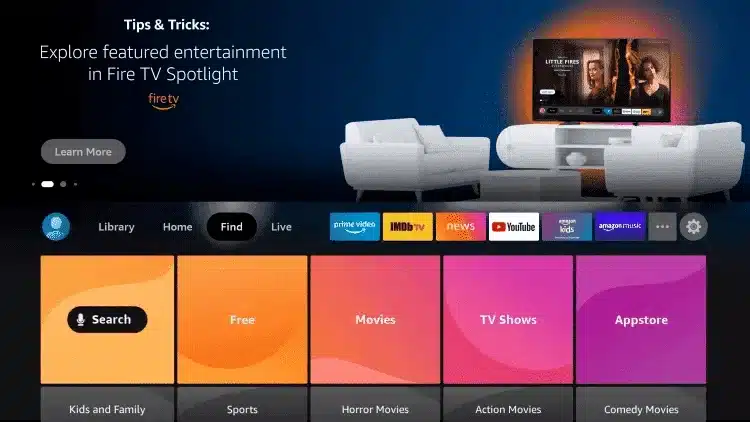
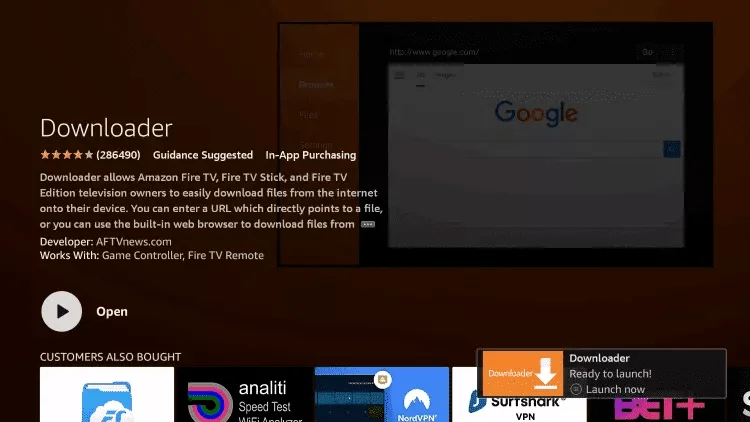
- Search for "Downloader" in the search bar, select the application, install it and
- On the home screen, open Settings, then go to "My Fire TV" (or "Device & Settings") and open "Developer Options." (You can watch this video) https://www.youtube.com/watch?v=v-tcQLl0pWI
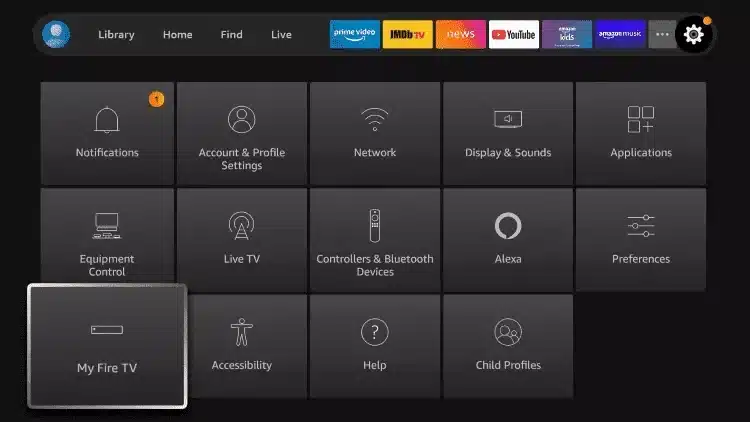
- Select "Developer Options".
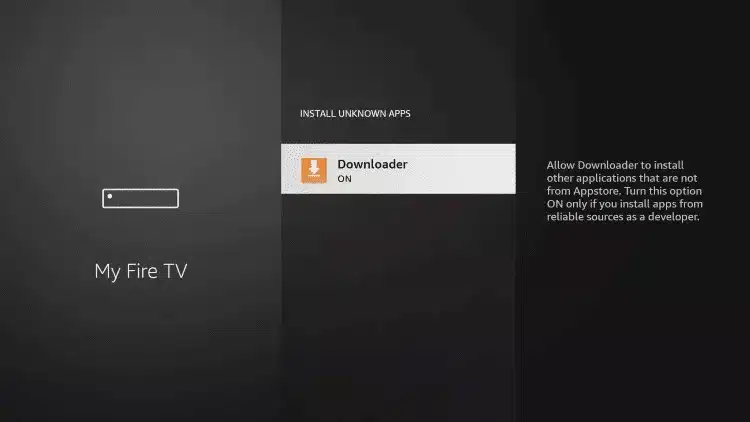
- Click on “Install unknown apps”.
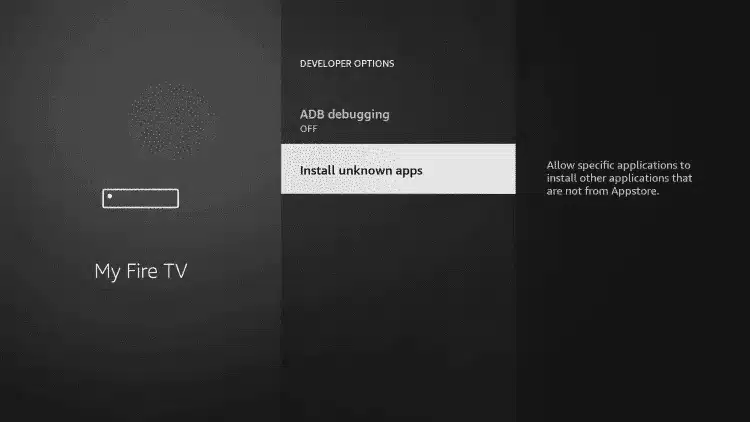
- Locate the "Downloader" application and tap on it. This will enable "Unknown sources" for Downloader, allowing sideloading on your device.
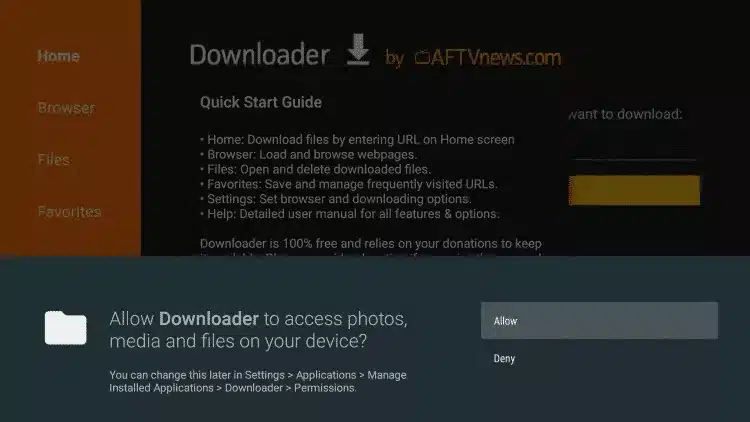
- Open Downloader again. The first time you start it, accept the permissions (click "Allow" and then "OK").
-
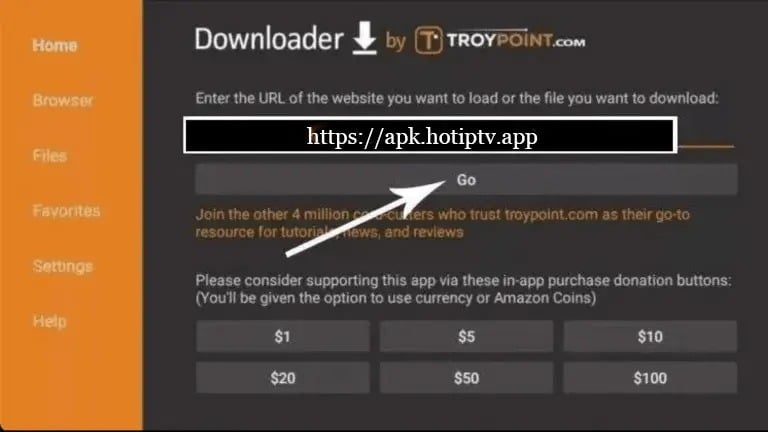
Enter the following URL exactly as shown:
- 4K PLAYER (free for our customers) Downloader Code: 140991 – Short link: https://aftv.news/140991
- 8K Player VIP (free for our customers) Downloader Code: 439873 – Short link: 2u.pw/8kv
- Hot Player (€5 surcharge) URL: https://apk.hotplayer.app/ or use the code: 395800
Then click "Go" and wait until the APK file has downloaded.
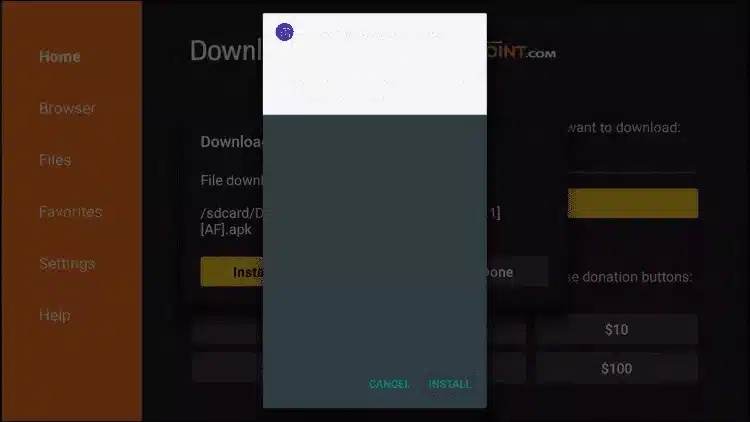
- Once the download is complete, an Android installation window will open. Click "Install". After the installation is finished, click "Done".
- Open the application and then send us your MAC address via WhatsApp or email.
- Download one of the compatible apps (4K Player, Hot IPTV, Set IPTV, Vu Player Pro, IBO Player) directly from the store of your Samsung or LG Smart TV.
- After installation, open the application: The screen will automatically display your MAC address and device key (example with IBO Player).
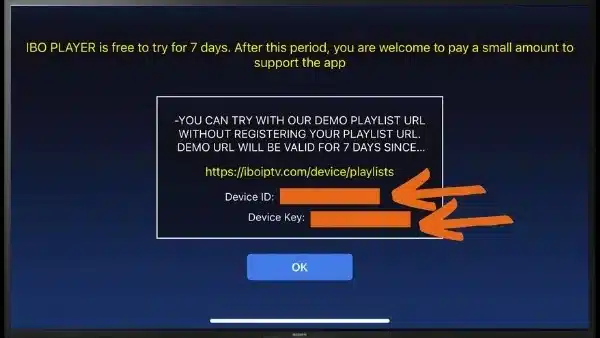
- Please send us the application name, MAC address and device key via WhatsApp or email for activation.
- Wait a few minutes and then restart your Smart TV. Open the application again – your service is now ready to use.
Windows
Option 1 : IPTV Smarters Pro (Windows)
- Download the IPTV Smarters Pro application via this link: https://www.iptvsmarters.com/download/?download=windows_app
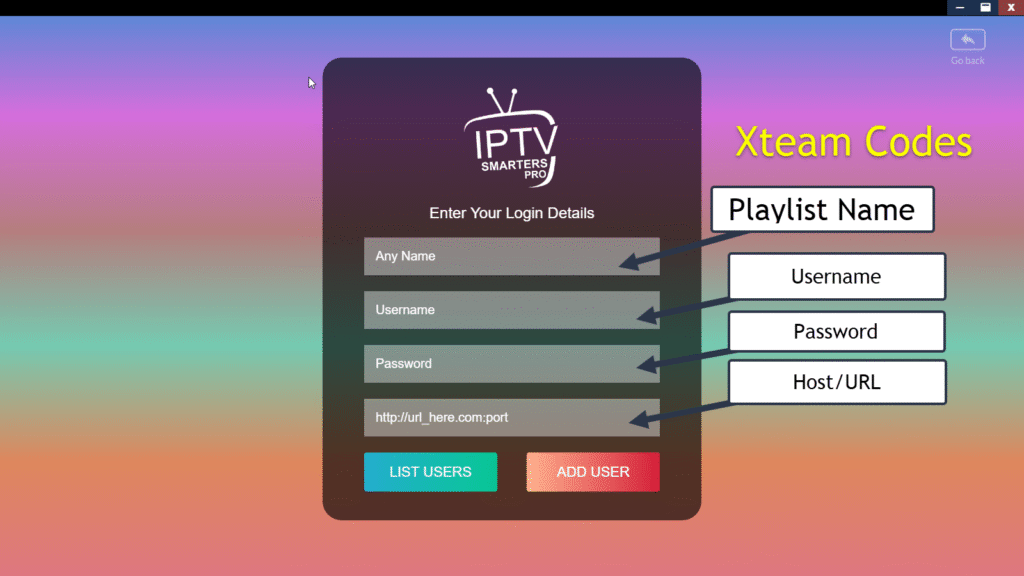
- Install the application, open it, and then enter your Xtream Codes login details (username, password, server URL) provided by Hakuna TV. Once the connection is established, the app will automatically load the channels and VOD content.
Option 2 : Vu Player Pro (Windows / Mac / Smart TV)
- (Windows version) Download the application. Download Vu Player Pro from the official website: https://vuplayer.pro
- (Mac Version): https://apps.apple.com/us/app/vu-player-pro/id6449420114
- (Windows version) Download the application. Download Vu Player Pro from the official website: https://vuplayer.pro
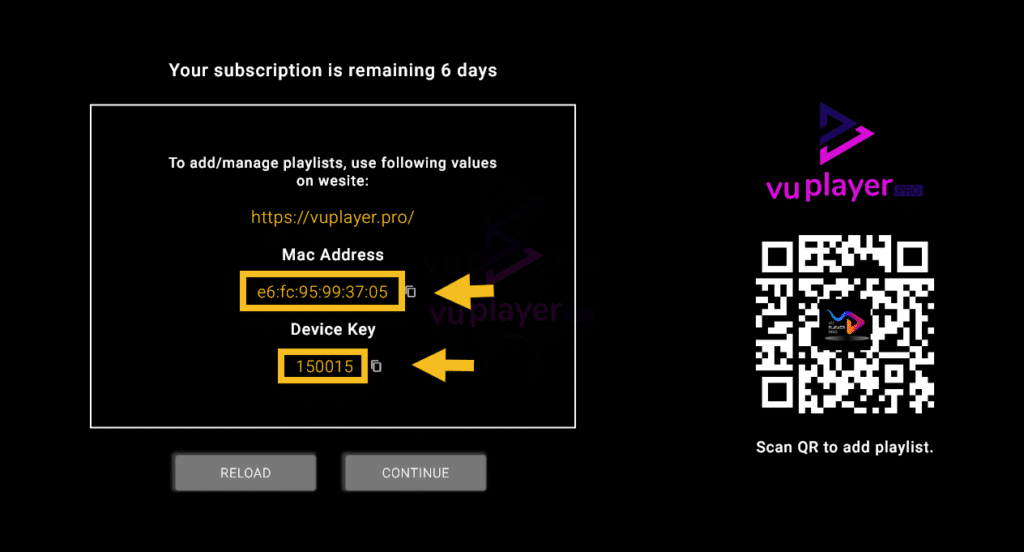
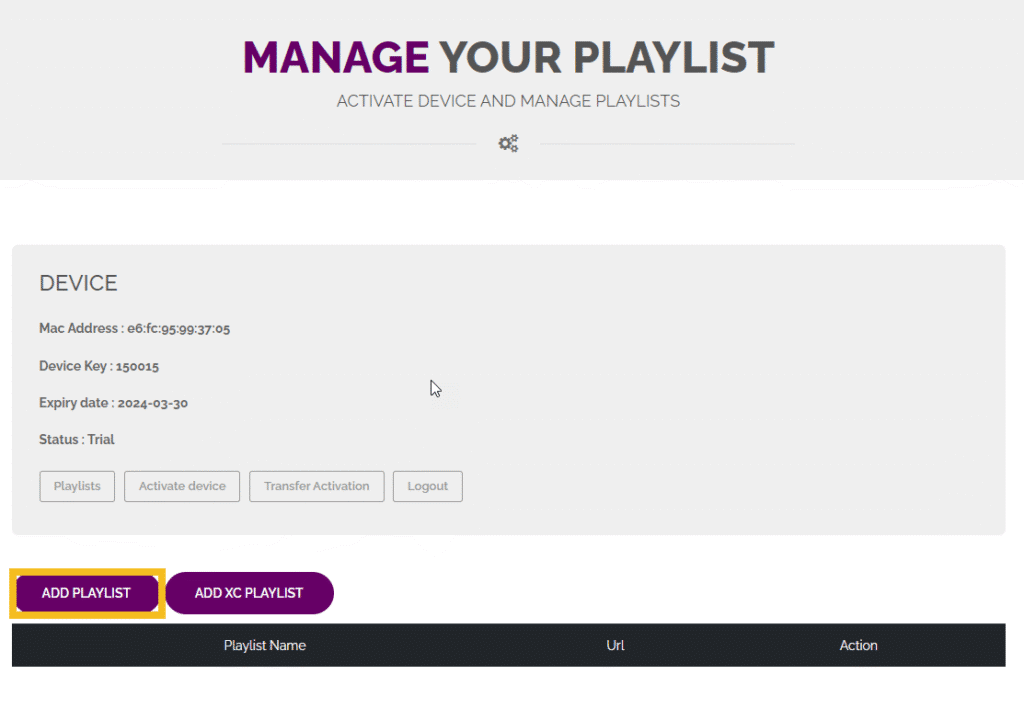
- Open Vu Player Pro and note down the MAC address and device key displayed on the screen.
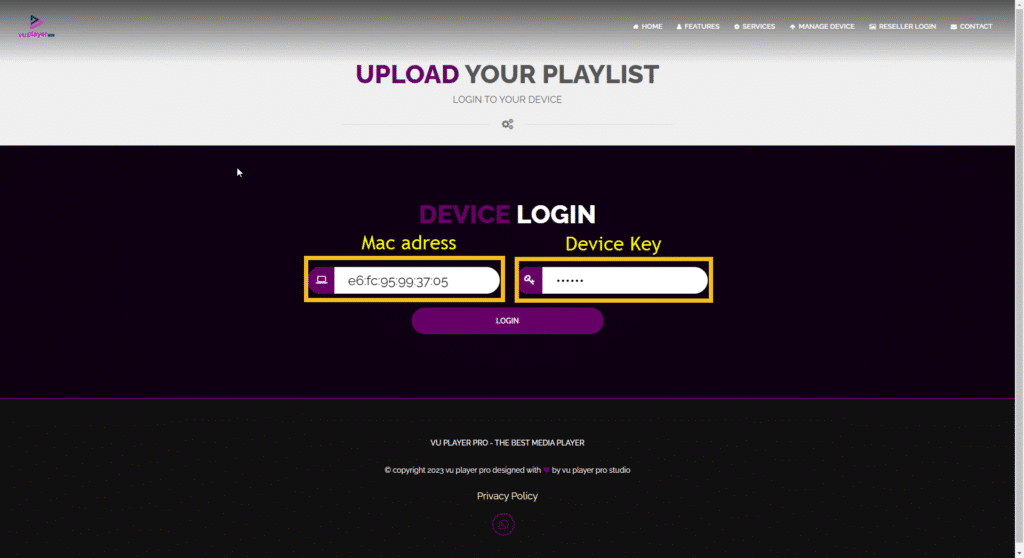
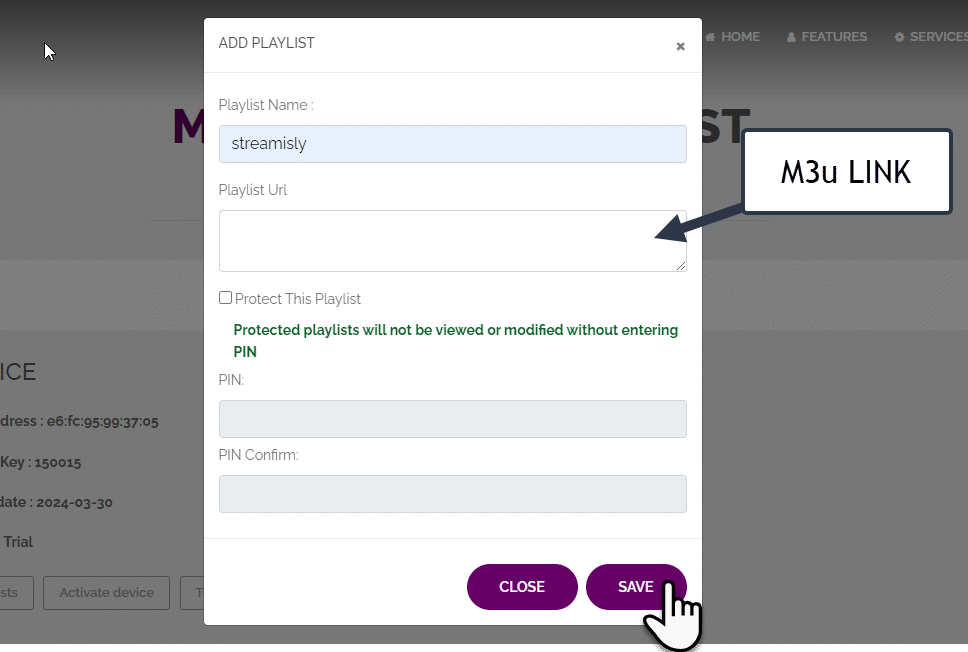
- Click on “Add Playlist”, insert your M3U link provided by Hakuna TV and then click on “Save”.
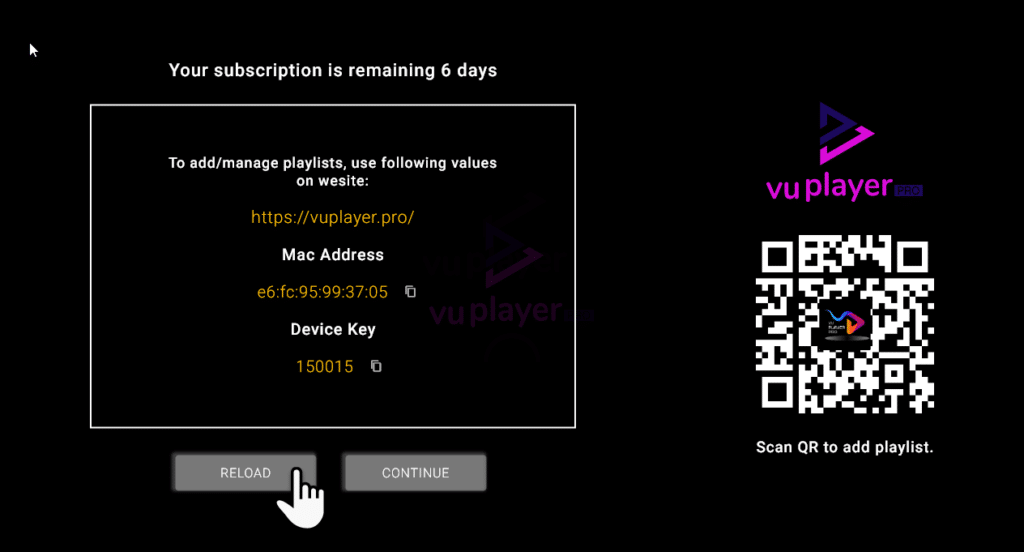
- Go back to Vu Player Pro, click on "Reload" and let the channels and VOD content load.
IPTV configuration on Android – 8K VIP PLAYER
-
Download the APK via Downloader:
https://aftv.news/405663
Code: 405663
or for Android phones: 2u.pw/8kv
– make sure that “Unknown sources” is enabled.
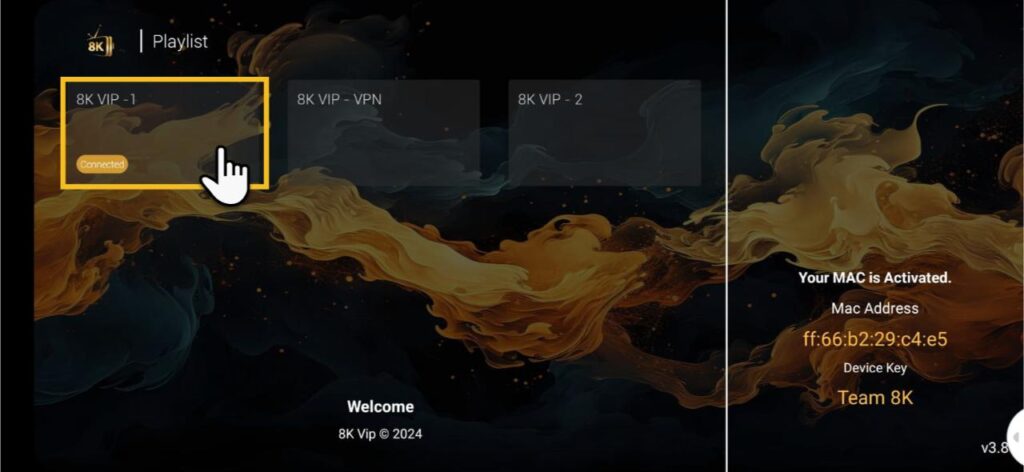
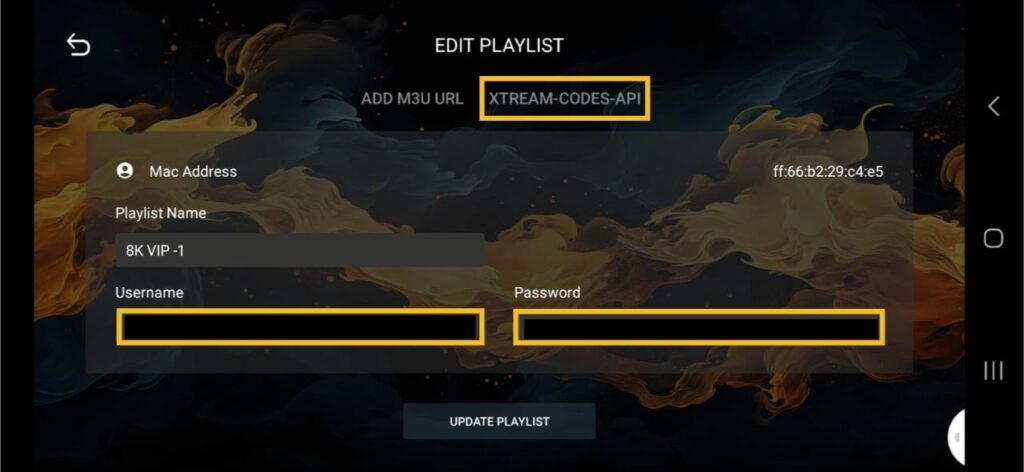
- Click "Edit" to access the connection settings. Enter the username and password provided by Hakuna TV.
IPTV configuration on Android – Vu Player Pro
-
Download Vu Player Pro from: https://vuplayer.pro
Open the application and note the MAC address and the device key.
-
Go to https://vuplayer.pro/login and enter your MAC address and device key.
Add your IPTV playlist: Click "Add Playlist," paste the M3U link provided by Hakuna TV, and then click "Save."
- Go back to Vu Player Pro, click on "Reload" and let the channels and VOD content load.
- Please send us the MAC address of your MAG device via WhatsApp or email.
- After payment, we will send you the portal link.